Money-in-Sheets.
How to track your expenses from your bank's transaction alert emails to Google Sheets.
Writing about things I learn helps me understand better, and I hope reading them will help you too! 🙂
Intro
In an attempt to build an expense tracking software, I tweaked an existing script written by Prasanth Janardanan using Google Apps Script.
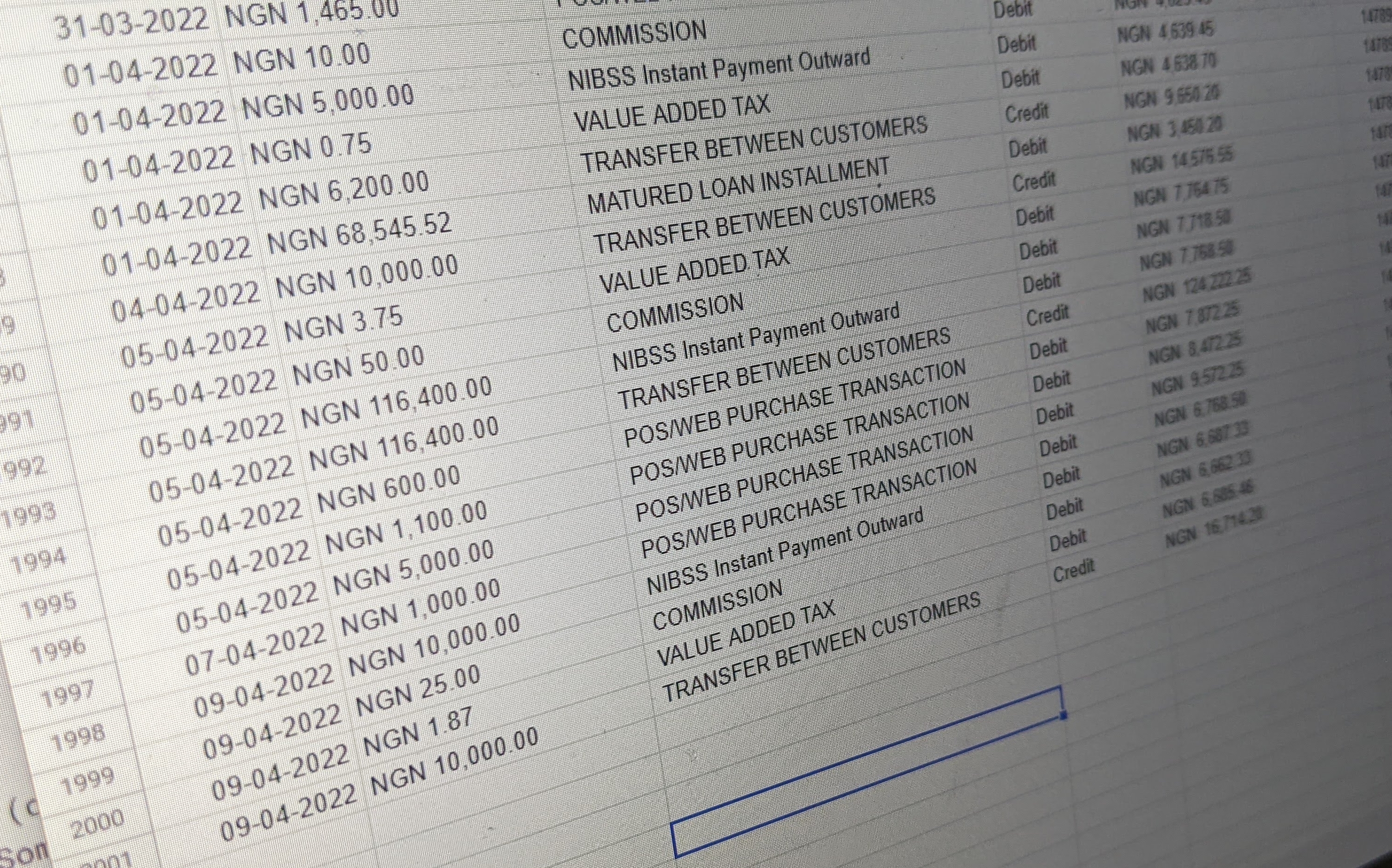
If you're anything like me, you've thought about tracking your expenses across all your accounts in one place. This article explains how to fetch, parse and clean up transaction data from your bank transaction alert emails to google sheets.
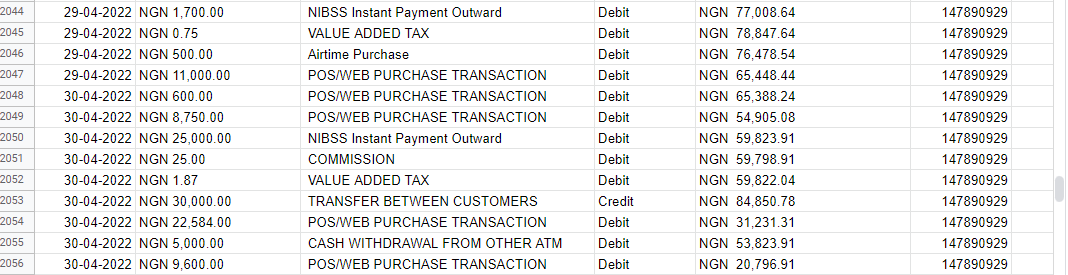
You can customise this script to work for any bank's transaction emails. Let's get to it!

Create a Google Apps Script for your destination spreadsheet.
We'll start by creating a new spreadsheet from Google Sheets.
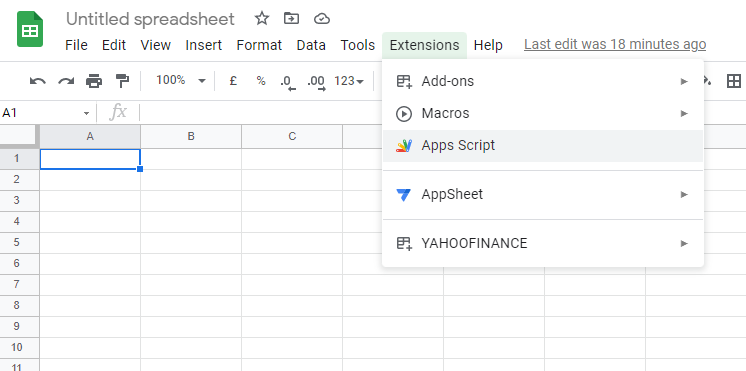
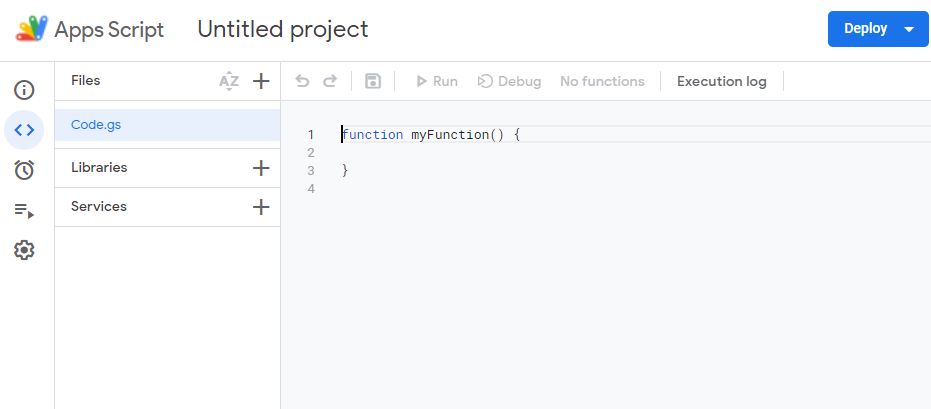
Set up your script on sheets.
We'll add a custom ribbon to your spreadsheet's toolbar to serve as a shortcut for running the script. This is optional.
Filtering your bank transaction alert emails.
Gmail's API is used to search and filter bank transaction emails. These emails are stored in a list messages. The getBankEmails function searches for 10 emails with subject containing “GeNS transaction Alert …”.
Displaying these messages in HTML.
To see the contents of messages, a new HTML file named messages.html is created in Apps Script.
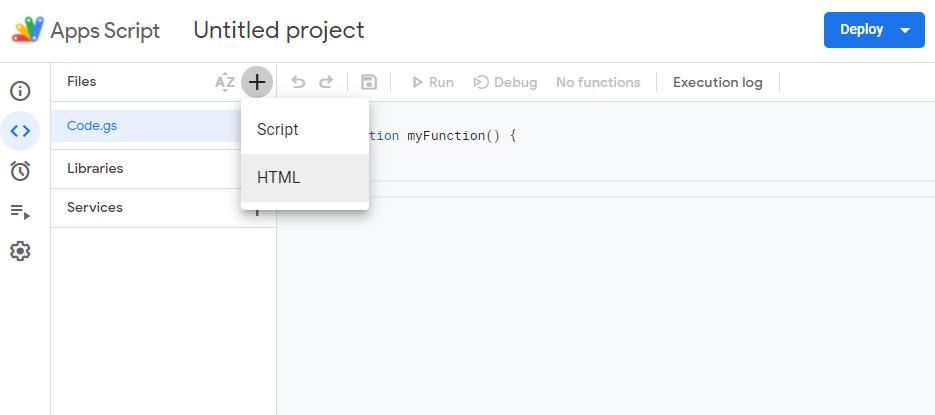
Next, we write a script to display the messages as HTML.
The search filter can be adapted to work for your specific bank transaction emails.
To view this HTML file on the browser,
- You need to create a
doGetfunction in yourCode.gsfile. This is the script's entry point. - select the
doGetfunction to run on App Scripts.
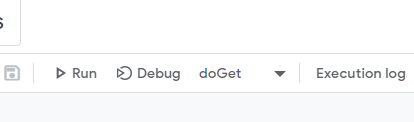
- Next, select Deploy -> Test deployments -> ,
- Click the Web app URL generated.
- The first time you run this, you'll need to grant Apps Scripts permissions.
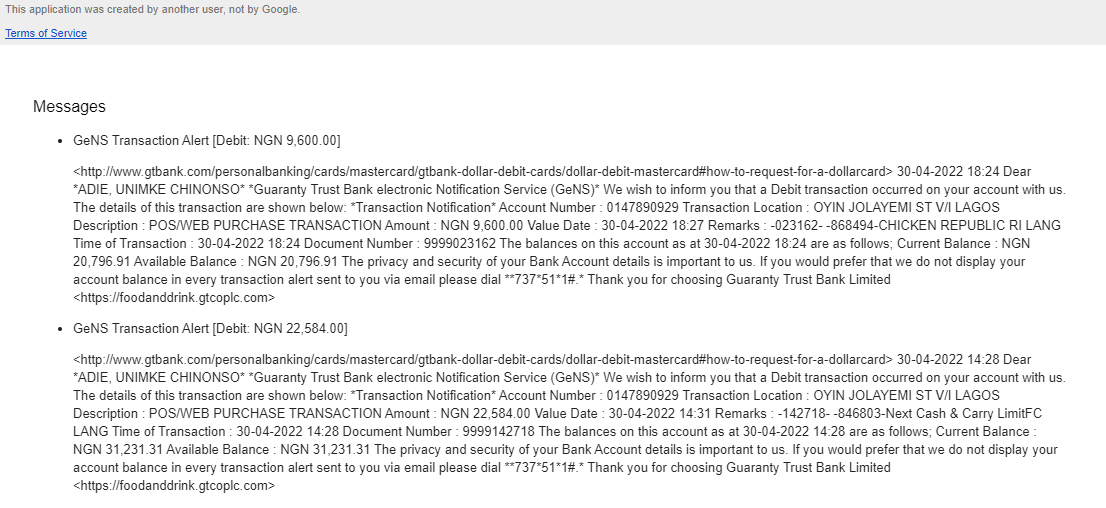
- You should see a list of your messages.
Parsing the messages
The next step is to parse and extract the relevant data we need to populate the columns of our spreadsheet. Regular expressions are used to search for relevant text. Check out https://regexr.com/ to build regular expressions easily.
Most of the script's heavy-lifting was done here.
Displaying the parsed messages in HTML.
Just like before, to see the contents of txnData, a new HTML file named parsed.html is created in Apps Script.
Again, we write a script to display the parsed messages as HTML.
To view this parsed HTML file on the browser, repeat the same steps to deploy a web app.
You only need to call the
displayParsedDatain thedoGetfunction in yourCode.gsfile, and comment outdisplayEmails.You should see rows of your parsed transaction.
Saving your transaction data to Google Sheets.
Now we save our transaction data in txnData to sheets.
Again, you need to call the processTxnEmails in the doGet function in your Code.gs file, and comment out displayParsedData.
Processing only new emails.
Calling processTxnEmails will populate your spreadsheets multiple times. A way to prevent this is to label all emails processed by the script.
The -label:scripting-emails is added to the search filter to label emails that have been processed. Next time when processTxnEmails is called, only emails without this label will be processed because processed emails will be labelled with our scripting-emails label name.
Processing emails every 1 hour.
Here, we'll simply add an extra operator to the search function to only process emails within the last 1 hour. The new search filter becomes:
Automating the script with a timer trigger
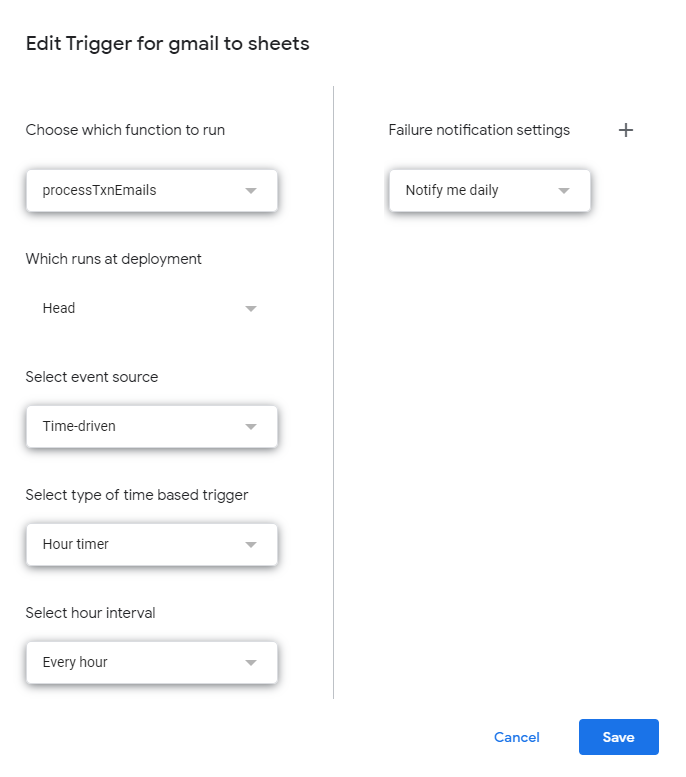
To add a trigger to run the script every 1 hour, you'll add a timer trigger.
- Go to Triggers -> Add Trigger, and use the configuration below:
And there you have it. Full code on Github

I had extra regular expressions on the destination sheet to further clean the parsed data.
Full credits to Prasanth Janardanan